
Stop Motion Science

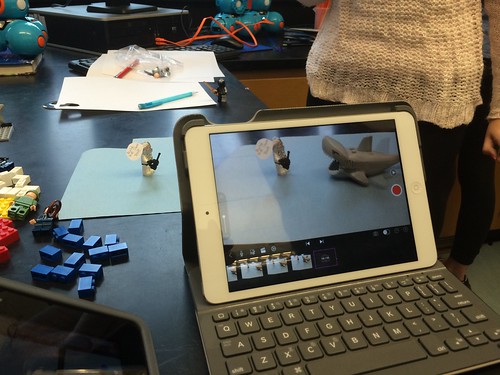
8Science students collaborated in the creation of a LEGO Stop Motion Video to demonstrate their understanding of substances and different types of Elements. They created a story line that included MONATOMIC ELEMENTS, DIATOMIC COMPOUND and TRIATOMIC COMPOUNDS!

New Blakers!

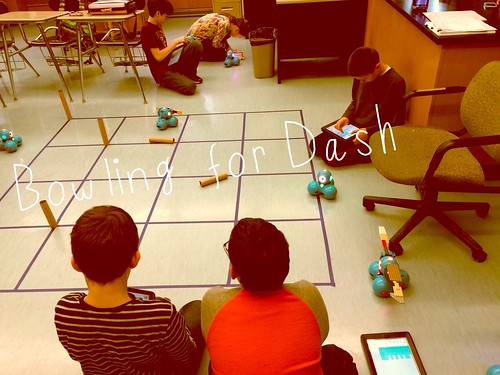
Welcome Dash and Dot! AfterSchool Coding Club members are test-driving the new robots which will soon be integrated into the Science curriculum.

Digital Learning Day 6th Discussion Panel

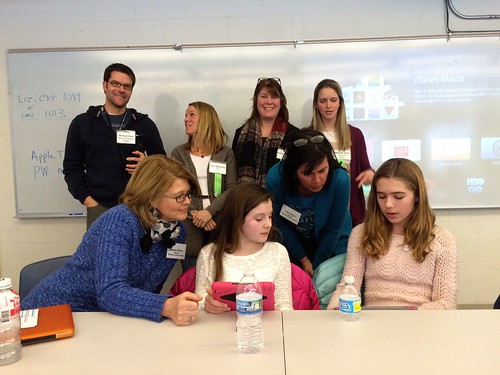
Medfield School District held its 3rd annual Digital Learning Day Conference filled with over 60 workshops for K-12 teachers in district and from schools out-of-district. Wellesley 6th Grade teachers joined Blake's 6th teachers and students for a discussion on their initial year of having 1:1 iPads in the classroom.

A Shout Out to Medfield HS/MS Student Volunteers

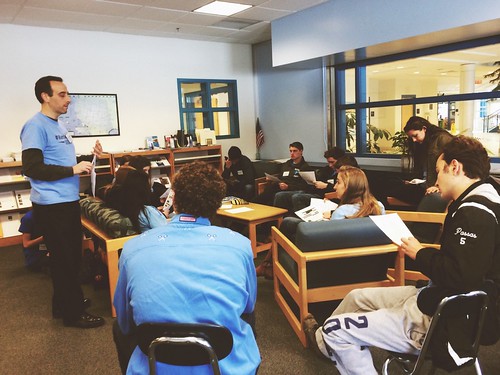
Our Digital Learning Day Conference wouldn't have been possible without the support of our wonderful Medfield HS Students and Blake MS students. This photo was taken at the beginning of the day, during a briefing with Neal Sonnenbergy (HS Tech Integration Specialist)

Look out for these future App Developers

This group of Blake MS girls are entered into the Global Competition, Technovation to design a mobile app that solves a community/social issue. Wish them Luck! The final pitch is on May 1st @ Microsoft NERD Center!

Took the Show on the Road

Blake MS Principal Nat Vaughn and 8Science Teacher Jason Heim presented about the Blake iPad Initiative at the LearnLaunch Conference, Harvard Business School.

Green Screen App Smashing

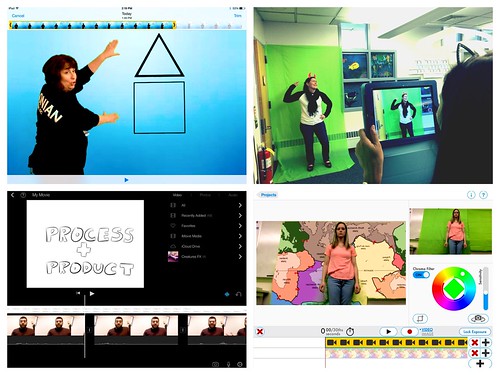
At our final EdTechTeacher Workshop, 6th/7th Grade Teachers explored their creative side by layering green screen videos over images for engaging instructional videos. It was total fun!

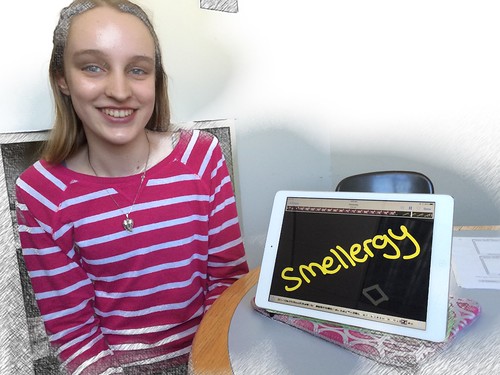
Convert Smells to Energy = Smellergy!

Nicolina is changing the world one nose at a time! Her entry was clearly on track with dreaming, designing, and delivering an energy-saving idea into the Blake Energy Invention Contest!

Sometimes the Ideas start here

Planning and drawing out a story board before the creation of an Explain Everything project is an essential step in the process!

Showing posts with label quick tips. Show all posts

5.26.2013

iCal & the 8th Grader


One of the first significant differences the iPad has made in the school life of an 8th grader is in learning organization and time management skills using the iCal app in place of a paper agenda book.


Just think... No longer are there torn or missing pages from the agenda.  No longer is their agenda misplaced or found crumbled and shoved into a backpack. In fact, with the combination of syncing Google Cal with iCal, the star cluster teachers make it pretty hard for students NOT to know about assignments and their due dates. The star cluster teachers actually created a shared calendar with every single 8th grader.  Now, the teachers can post long term assignments, field trips, reminders and much more on all calendars with a tap of a sync button. They can also be mindful in planning around each others testing dates and big project deadlines too.

Believe me, this doesn't let the students off the hook for maintaining their own calendars. The responsibility still remains theirs for adding daily homework events and any other important information. The school also encourages families to set up their own shared calendar for after school sports, family events, and their scheduling needs.


Leave it up to students to figure out additional ways to make the calendar their 'own". One of the teachers discovered that some students were 'checking off' finished assignments with hearts!  (Click on the above screenshot of an actual 8th grade iCal to biggify.)  This student was using the Emoji keyboard to type in the HEARTS! Clever!


Other students take advantage of the camera app to snap a photo of the assignments written on the board to then later add to their iCal.  This is particularly helpful as an accomodation for students who struggle with writing or have motor skill deficits to keep up with the pace of the class.  Multiple calendars can also be created and color coded to easily distinguish between them. Events can have alerts and visual reminders set up for deadlines. These simple features are really beneficial to all users!

More information on iCal tips and tricks, try the following resources:
Keyboard Fun in a Nutshell
Syncing Google Cal with iCal
Setting up the Emoji Keyboard on your iPad
5 Superb iCal Tips to increase your Productivity
Video Tutorials of a variety of iCal tricks
iPad Basics for Everyday Tasks


If you have questions, feel free to leave a comment.

3.17.2013

Take it to the Amazon Cloud Player!

Smart Device Management Tip #1:  Store your Music from iTunes in the Cloud!


As the district moves towards the 8th grade BYOiPad and 9th grade BYOD (family-owned device) model, trying to balance personal/home-use with school-use requires  smart management of what is actually kept on the iPad or mobile device. Think about how easy it is to accumulate an ever-increasing number of music downloads, photos taken with your iPad or device, download books, etc. Therefore, saving your work, photos, and more "to the cloud" is the best solution.

 This is where Cloud-based storage comes into play...


Click here for a QUICK TUTORIAL

One of the first things students will want to do with a device, whether it's an iPhone, Nexus tablet, or iPad is to download and play their own music on it. This could equate to thousands of songs sitting on that device and taking up space!

When a device is primarily for school-use, this issue could easily become a family battle, which the simplest solution is to decide - no music on the device. However, if there is room for compromise, a cloud-based storage solution is available or as they say, "There is an app for that"!  Amazon recently announced the Amazon Cloud Player as a way to import your music directly from iTunes and/or purchase new music from Amazon and then stream it directly to any computer or device via the Amazon Cloud Player app. All this means is... the songs never sit on your device and are stored & played "in the amazon cloud" with internet access.

Please note: The Amazon Cloud Player allows for free storage of your first 240 songs. Any additional songs would cost $24.99/year.  Also, you'll start by signing up for the Amazon Cloud Player on your home computer (requires credit card information- only charged for songs purchased through Amazon, not imported) and installing the Amazon MP3 installer.  From there, import your songs using the Amazon MP3 installer on your computer, download the app to your iPad and start enjoying your music right from your iPad!

Click here to Get Started!


3.08.2013

Quick Trouble Shooting Tips

When an app is not responding or not functioning correctly, do not fear! It may be a WI-FI, app, or iPad memory issue. There are several ways to try to resolve it. 


Many apps require a connection to the internet.  
Are you connected to the WI-FI network?
  • Tap on Settings; Wi-Fi
  • Staff Wifi or MSOPEN should be selected
  • Close Settings
  • Tap on Safari. Type in the address bar: 192.168.10.8:81
  • The Sonic Wall login screen should popup
  • If you're not logged in, then enter your username/pw
  • Try going to another website, to double check your connection

  • Double tap the home button
  • Find the app and press /hold on it until they all start dancing
  • Tap the red circle with the minus sign
  • Double tap the home button
  • Relaunch the app

Apps frequently have updates to fix issues or make improvements.
 Do you have the latest version?

          To update an app
  • Check the app store icon- a red notification circle indicates the number of apps that have an update available
  • Tap on the app store icon and updates at the bottom of the screen
  • Tap either update by each individual app or UPDATE ALL in the upper left hand corner of your screen.
         To update the iOS
  • Check the Settings icon- a red notification circle indicates an update for the iOS.
  • Tap on Settings> General
  • Tap on Software Updates on the right hand side of the screen
  • Tap on Install Now
* Suggestion: Check in with your teacher before making any updates to the iOS.


  • Find the app on your screen
  • Press and hold it down 
  • Tap the black circle with the white x to delete the app
Deleting the app will also delete all of its data and your work- please be sure to sync or upload your work to dropbox beforehand!
  • To reinstall, go to the app store, find the app
  • Tap the install button next to it and it'll download to your device for free.
  • Relaunch your app to use.

  • Press and hold the power button until the red slider arrow appears
  • Slide to power off
  • Press and hold the power button to turn back on

  • Press and hold the power and home button at the same time 
  • Continue to hold them down until you see the Apple logo appear
  • Slide to unlock the iPad

  • Go to Settings> Mail, Contacts and Calenders
  • Tap on the Account that is not working
  • Re-enter the username and passwords
  • Try the app again. 
  • If it still does not work, it may be best to delete the account and add it again. Before you do, be sure you know the correct settings or information to re-enter.

REPORT IPAD ISSUES ONLINE FORM  (http://bit.ly/reportipadissues)