Stop Motion Science

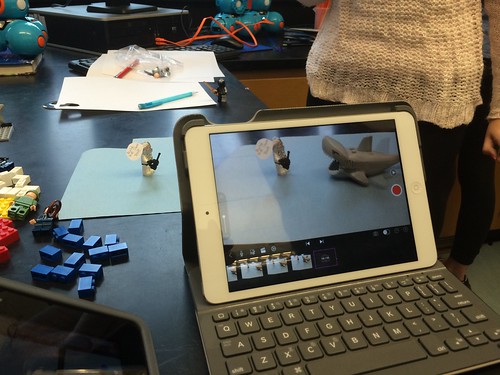
8Science students collaborated in the creation of a LEGO Stop Motion Video to demonstrate their understanding of substances and different types of Elements. They created a story line that included MONATOMIC ELEMENTS, DIATOMIC COMPOUND and TRIATOMIC COMPOUNDS!

New Blakers!

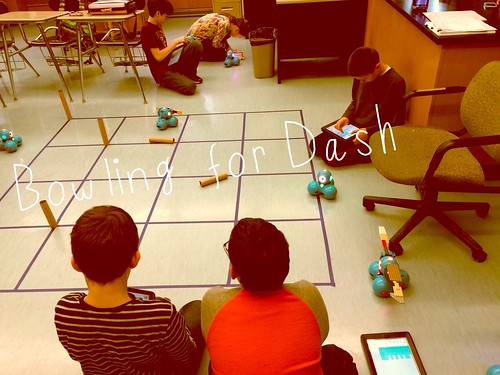
Welcome Dash and Dot! AfterSchool Coding Club members are test-driving the new robots which will soon be integrated into the Science curriculum.

Digital Learning Day 6th Discussion Panel

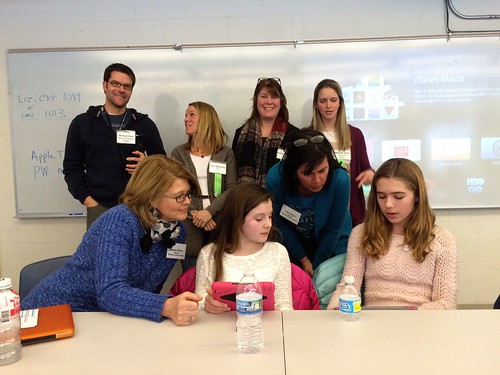
Medfield School District held its 3rd annual Digital Learning Day Conference filled with over 60 workshops for K-12 teachers in district and from schools out-of-district. Wellesley 6th Grade teachers joined Blake's 6th teachers and students for a discussion on their initial year of having 1:1 iPads in the classroom.

A Shout Out to Medfield HS/MS Student Volunteers

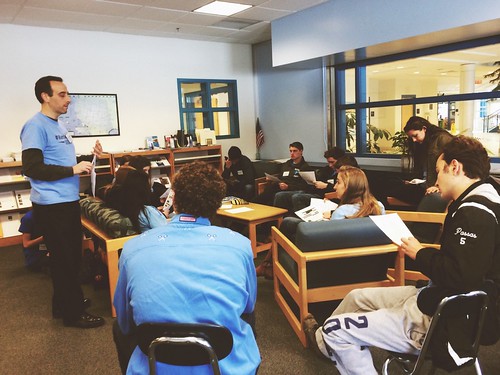
Our Digital Learning Day Conference wouldn't have been possible without the support of our wonderful Medfield HS Students and Blake MS students. This photo was taken at the beginning of the day, during a briefing with Neal Sonnenbergy (HS Tech Integration Specialist)

Look out for these future App Developers

This group of Blake MS girls are entered into the Global Competition, Technovation to design a mobile app that solves a community/social issue. Wish them Luck! The final pitch is on May 1st @ Microsoft NERD Center!

Took the Show on the Road

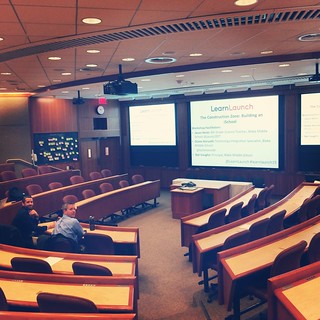
Blake MS Principal Nat Vaughn and 8Science Teacher Jason Heim presented about the Blake iPad Initiative at the LearnLaunch Conference, Harvard Business School.

Green Screen App Smashing

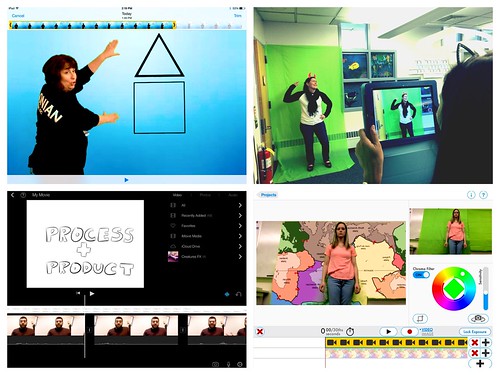
At our final EdTechTeacher Workshop, 6th/7th Grade Teachers explored their creative side by layering green screen videos over images for engaging instructional videos. It was total fun!

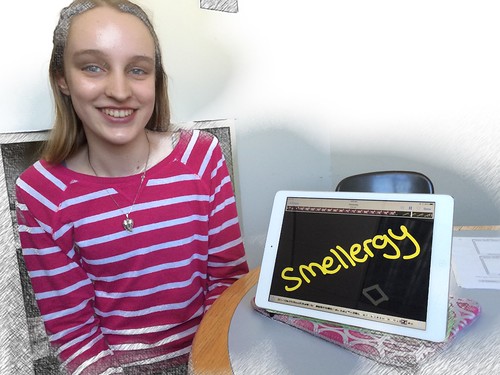
Convert Smells to Energy = Smellergy!

Nicolina is changing the world one nose at a time! Her entry was clearly on track with dreaming, designing, and delivering an energy-saving idea into the Blake Energy Invention Contest!

Sometimes the Ideas start here

Planning and drawing out a story board before the creation of an Explain Everything project is an essential step in the process!

Showing posts with label explain everything. Show all posts

11.30.2014

PTA: Back Up Your Work in Explain Everything & Notability


Attention all Students: 
I want to remind you about the importance of backing up your work particularly when using Explain Everything and Notability. Many students have stopped by my office after their iPad crashes! Even if you have iCloud setup, you must MUst MUST follow these steps to save your work in these two apps.

 Explain Everything only saves locally to your iPad. It does not save to iCloud. Therefore, you will need to EXPORT any work created in EE to Google Drive.

First, make sure Explain Everything is connected to your Google Account. Export your work as a PROJECT File. It's quicker and will allow students to continue editing their work.  

  For more info, click the link below.

Second, Make this the last step in  your workflow routine when using Explain Everything!
Everytime you create something, end the class with exporting it to EE!

* The end result: IF your iPAD ever crashes, you can open EE import your work AND not miss a beat!

Notability will backup your work automatically if the BACKUP settings for Google Drive is Turned ON! Open the App < Go to Settings Gear (bottom lefthand corner), Login to Google< That’s IT! Your work will be autosaved in a Notability folder in Google Drive.


Please let me know if you have questions - Hopefully, this will help you from losing anything!

4.13.2013

Slow Motion Science

Let's face it- there is nothing that can replace a student conducting their own hands-on Science experiments!
This pretty much still holds true in a 1:1 iPad environment.  In fact, the iPad actually takes the back seat and serves a very different purpose in these situations. Plus, you only need ONE!


Enter into Mr. Heim's 8th Science Class.
His students usually work in partners for experiments. However, the Flame Test is the one test that requires more safety procedures to be in place. Therefore, Mr. Heim takes the lead in conducting the only experiment which means most students will have to watch from a safe distance.  Can you imagine being the student sitting in the back of the class? Maybe you were absent that day?  Or the experiment happens so fast that you missed the most important part?  

Well, Mr. Heim discovered a solution to these challenges. He simply found a stand to hold his device near the experiment and the Slo Pro iPad app to record & replay the entire process in slow motion as many times as needed. 

Watch the video below to join his class in action.

*You will also notice students then documented the results by hand-drawing a chart and explaining their observations in the Explain Everything app. This makes it possible for students to later return to their own audio-visual recording of the results.   Think of how beneficial is it to be able to watch and listen to your own explanation at any time too?

Without further ado...The Flame Test!


Let's take this one step further... 
Do you think all of the Science classes had the same experience?  
Reached the same results? 
Drew the same conclusions? 

Maybe. Maybe not.
Mr. Heim now has the ability to share each recording
with each class to draw their own conclusions.

 My conclusion:  Science in slow motion can be a powerful tool!

3.31.2013

Journey to the Center of the Earth

Screencasting gives students a tool to demonstrate creativity and collaboration.


8th Grade is filled with some adventurous field trips .. this latest one takes you directly to the Center Center Center of the Earth Earth Earth!

Grab your astrosuit and climb aboard as two 8th graders narrate your journey through the Earth's Crust, Mantle, Outer Core, Sub Layers and  Inner Core. 


Typically, Mr. Heim's students complete a web quest to answer questions as a way to demonstrate their learning.  However, with the iPad, the screen casting app, Explain Everything opens up other possibilities that push students to use creativity in writing a script, in finding images to match their information and in producing an animated movie. This activity also involved a tremendous amount of collaboration through discussion/communication, research, decision-making and the creation process. The end result.. you have students who not only met the learning objectives, but who were able to successfully complete a higher order complex task in an engaging, purposeful way.

3.14.2013

The Renaissance Comes Alive!

A Formal Invitation to the Renaissance Dinner Party
  in Mrs. McClelland's 8th Social Studies Classroom


In  past years, Mrs. McClelland's students were asked to culminate and apply the information and knowledge they had learned about leading Renaissance figures by writing an essay.  The essay had to describe the seating arrangement and conversations occurring between each figure if they were to attend a Renaissance feast.  Therefore, students were to consider each guests' language, personality, training, and achievements so that everyone has something to talk about with nearby guests at the table. This type of assignment proved to be a challenging task both for students in fully integrating each factor into a written explanation but also, for the teacher in grading each essay.


This year was different!  The timing for our professional development iPad workshop with Greg Kulowiec of EdtechTeacher could not have been better.  The workshop introduced the SAMR model and pushed our thinking to redefine a particular curriculum unit or lesson with technology to create new tasks that were previously inconceivable.

Poof! The redefinition of the Renaissance Feast was born!  
Students were to collaborate in small groups in creating a screen cast using the Explain Everything app. As a group, they were to demonstrate the different possible seating arrangements visually with actual images while recording their explanations. The newly redefined version of the assignment proved to be successful.


Wait, there's more....
The rethinking of how students learned about the leading Renaissance figures did not begin or end here.  In previous years, students read from the textbook and often confused the names of the individuals and facts. The Funny Face Maker app actually brought these figures to life! Students were more engaged to hear from 'a living museum' of characters.


This process involved students working with partners to watch each movie clip and to take notes on a graphic organizer provided on paper.


At the end of their research, students choose a Renaissance figure to debate who was the most influential of that era. Students had the opportunity to create their own ' Living Figure' with the Funny Face Maker app to present the beginning of their argument.


No iPads needed... Learning activities are not designed solely to use the iPad. There are times when hands-on activities are best. The Renaissance lends itself perfectly for that. Of course, Mrs. McClelland incorporated a little artistic experience into the unit to let students 'become Michelangelo" by painting the ceiling of the Sistine Chapel which of course, looked like this! 


The iPad offered Mrs. McClelland ways to enhance and redefine curriculum that was not possible before. The results were students having success in accessing, learning and demonstrating their new knowledge of the Renaissance Era.

2.15.2013

Student Work: Explaining Everything about Paragraphs

Paragraph Comparisons
Mr. The Hellerstein's class has spent several weeks reading and discussing the book, The Crucibles.  Part of the literacy unit included time examining good paragraph writing in preparation when they will write their own essay.

When given two paragraphs, Mr. Hellerstein challenged his students to answer the question: Can you spot the better paragraph?

To complete the task using their iPad, students followed this work flow:

1. Get Assignment:  Get the digital copy of the two paragraphs from Mr. Hellerstein's shared class Dropbox folder.

2. Complete Assignment: Open in the screencasting app, Explain Everything.  Record explanation by narrating and marking up the paragraphs.

3. Turn in the Assignment: Export their movie directly from the Explain Everything app to the student's own Dropbox folder shared with Mr. Hellerstein.


Explain Everything is a screencasting app that allows students to demonstrate their knowledge and learning through visuals, narration and annotating the screen. In these examples, students 'explain' their comparsions of the two paragraphs with details supporting their decision.


2.11.2013

Math and Educreations- a perfect combination


Mrs. Perachi - Math
So far, in math class, the iPad has been used mostly for organization, demonstrating knowledge, and study skills. The iCal app has been very helpful for students entering daily homework. They have also been able to use it to enter long term assignments. They set reminders for themselves. They have also set an assignment to repeat daily so that it shows on their list of assignments every day as a reminder to continue working on it. Long term assignments are often the ones that students forget to complete. The option of repeating an assignment has helped students remember that something is due.

Evernote has also helped with organization. Students often have binders that are overflowing and papers are not put in the correct sections. With Evernote, students take completed notes from my webpage and save them in a notebook in Evernote. This has also assisted in helping them study. They have a notebook with all of the notes from each section that they can refer to.

In addition to Evernote, we have been using Educreations and Explain Everything to create lessons that students can use to help them study for assessments. Educreations and Explain Everything allow students to record themselves writing and speaking. They have been recording themselves solving problems and explaining their thinking as they work. These lessons can be used later when studying. It is more engaging than reading through their notes or looking in the textbook. In addition, they have created flip charts for vocabulary. They record themselves writing the word, saying the definition, and also writing some examples. Similar to flashcards, these lessons can be used to quiz themselves before a test. The students can pause the recording, try and come up with the definition and example, and then play it to check for accuracy. Using technology can be more exciting than flashcards and they are also getting the auditory feedback that they do not with a flashcard.