Stop Motion Science

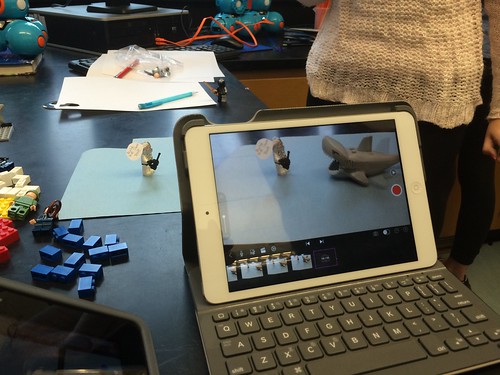
8Science students collaborated in the creation of a LEGO Stop Motion Video to demonstrate their understanding of substances and different types of Elements. They created a story line that included MONATOMIC ELEMENTS, DIATOMIC COMPOUND and TRIATOMIC COMPOUNDS!

New Blakers!

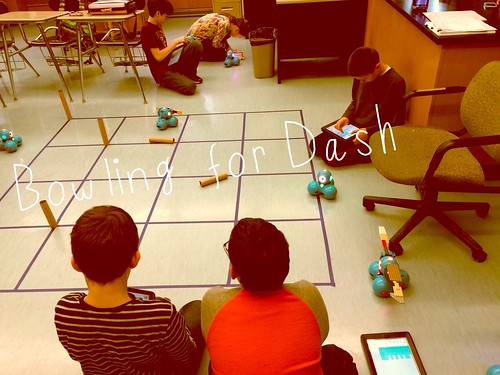
Welcome Dash and Dot! AfterSchool Coding Club members are test-driving the new robots which will soon be integrated into the Science curriculum.

Digital Learning Day 6th Discussion Panel

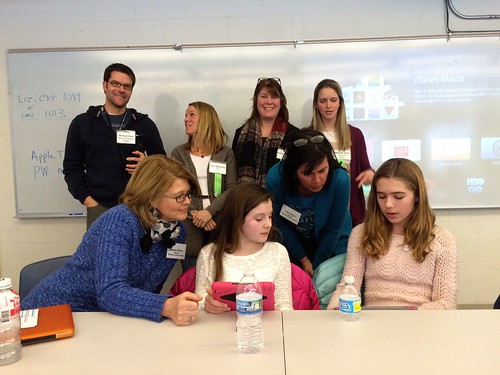
Medfield School District held its 3rd annual Digital Learning Day Conference filled with over 60 workshops for K-12 teachers in district and from schools out-of-district. Wellesley 6th Grade teachers joined Blake's 6th teachers and students for a discussion on their initial year of having 1:1 iPads in the classroom.

A Shout Out to Medfield HS/MS Student Volunteers

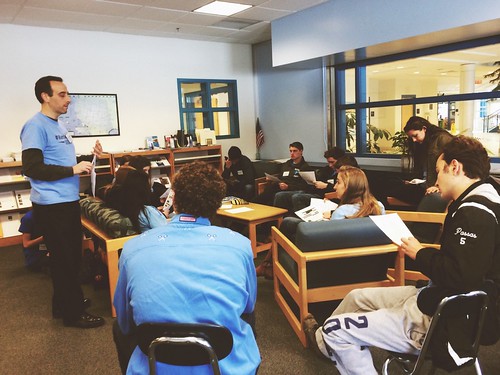
Our Digital Learning Day Conference wouldn't have been possible without the support of our wonderful Medfield HS Students and Blake MS students. This photo was taken at the beginning of the day, during a briefing with Neal Sonnenbergy (HS Tech Integration Specialist)

Look out for these future App Developers

This group of Blake MS girls are entered into the Global Competition, Technovation to design a mobile app that solves a community/social issue. Wish them Luck! The final pitch is on May 1st @ Microsoft NERD Center!

Took the Show on the Road

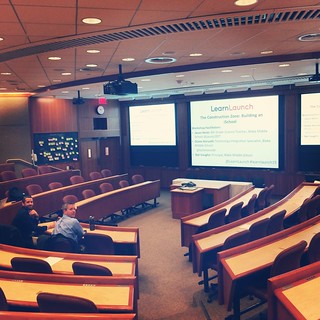
Blake MS Principal Nat Vaughn and 8Science Teacher Jason Heim presented about the Blake iPad Initiative at the LearnLaunch Conference, Harvard Business School.

Green Screen App Smashing

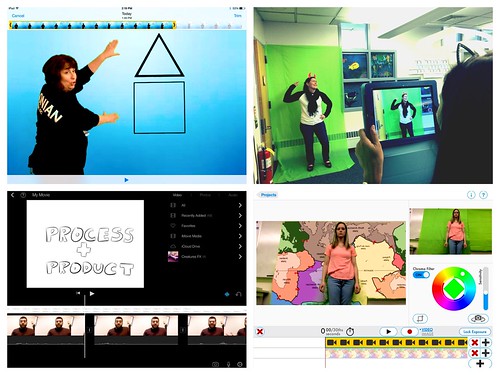
At our final EdTechTeacher Workshop, 6th/7th Grade Teachers explored their creative side by layering green screen videos over images for engaging instructional videos. It was total fun!

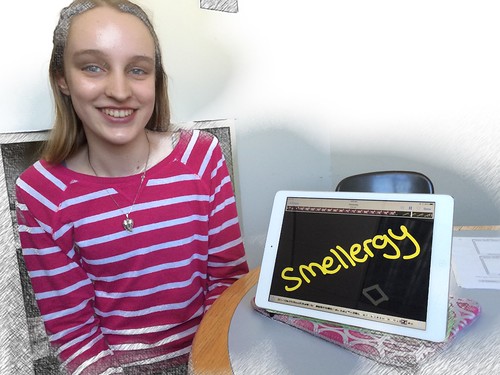
Convert Smells to Energy = Smellergy!

Nicolina is changing the world one nose at a time! Her entry was clearly on track with dreaming, designing, and delivering an energy-saving idea into the Blake Energy Invention Contest!

Sometimes the Ideas start here

Planning and drawing out a story board before the creation of an Explain Everything project is an essential step in the process!

11.09.2013

Cómo se utilza Padlet?


8th Graders in Maura Batts' Spanish Class just finished a quiz. With time left in the period, she set up a Padlet wall for students to practice answering casual conversation questions. Students quickly went to the Padlet link on their iPad, tapped the screen and added their responses.

Padlet is basically a virtual sticky note board accessed via web--working across any device.  What typically would be an paper and pencil task, can now be collaborative, shared collection of responses in one place, which can then be incorporated into a website or saved as a PDF!

Students are also able to respond to each other or add as many notes as they like with images, videos and/or text.  The teacher has the options to moderate posts and control who has access it. This is a quick, easy way for World Language teachers and others can get feedback about homework, assessments, a lesson, or use for reflections, etc. In fact, Blake's Middle School Principal, +Nat Vaughn found by integrating it into faculty meetings as the "parking lot" of staff questions and comments, he's able to demonstrate how a web-based tool can enhance learning and discussion. With this "student" experience, a few teachers took this back to their classroom to give it a try!

Echar un vistazo a las respuestas de los estudiantes Maura Batts'!


Created with Padlet

Thank goodness for Google Translater in my Chrome browser or iPad app... I only understand a little bit of Francáis, and none of Spanish!  If you have used Padlet or other similar collaborative tools, please share in the comments below.

11.02.2013

Early transformation of the Russian Icon project!

Eighth grade begins the shift in the Massachusetts' Social Studies Curriculum Frameworks towards learning about World History. Medfield students begin their year examining Russian civilization. This includes a visit to the Museum of Russian Icons located in Clinton, Ma. to help students understand the role that icons played in the lives of Russians.

In years past,  the assignment was for students to bring their worksheet and a pencil to complete a scavenger hunt while touring the museum.  This year, with iPads in hand, they could capture their "answers" and easily refer back to the powerpoint slideshow  (which was accessible on their device) as a reference for more information.


 In addition, students were now able to capture their experience by snapping photos and videos which were incorporated in their follow-up collaborative group project.  The project had to include at least 5 of 11 images stating the significant fact of each. Students were given leeway to use any of the following apps:  TouchCast, Telligami , Explain Everything or any combination to produce their project and share it with their teacher via Google Drive/ email the link.

These are a few fantastic examples:


With the TouchCast app, Py and Joe pulled in their videos & pics while recording their
video of themselves (reading from a built-in app prompter).  Other elements can be pulled into the app too such as twitter feeds, webpages, and more offering a real 'newscaster' production.


Telligami has really caught the attention of our 8th graders as
most are hesitant to record and listen to their own voices or see themselves in a video.
(Who can blame them, I am the same exact way!) Telligami's avatar 
option has been a wonderful work around /alternative!
(For other Talking Avatar apps: Click Here)

These are also examples of how learning is being transformed across that SAMR model line to more of a modification and redefinition use of technology than purely substitution. Bravo!

Thanks to 8th graders and to our Social Studies teachers, Mrs. McClelland, Mr. Sullivan and Mr. Taliaferro for sharing their work and projects.


11.01.2013

Sand and Water Lab Remix!

This is the remix.. of Science.

The 8th Graders in +Jason Heim's Science Class covered the usual Sand and Water lab to learn about volume and density. With the options that the iPad offers, students put a touch of creativity to demonstrate their learning.

First up, students write a rap. Yes, a rap song to explain the steps to calculate the volume of sand and water. They took advantage of the Apple's Garageband app going FREE, wrote their lyrics and mixed up a fly beat to deliver their fresh Science rhyme!  Take a listen.


While another student chose to animate her narration of the Science lab using the Telligami app.
The Telligami apps lets you create an avatar, select a scene and add dialogue by recording your voice or typing in text.  If you notice, her scene is an actual photo of the experiment from class. How cool is that !


Creativity is one of those skills that is best developed with exploration.  Combine it with the learning objectives and the opportunities the iPad brings, you'll get these surprising results!


9.20.2013

Medfield Goes Google Apps!


With the expansion of Medfield's mobile devices, the decision to go Google Apps for Education (GAFE) only made sense.  Google Apps allows school districts to create and manage teacher and student accounts to include their use of Gmail, Calendar, Docs and Site. More importantly, GAFE moves us to cloud-based solutions giving everyone more flexibility in accessing their files, sharing, and keeping track of homework, events, etc. through the google calendar from anywhere- on any device or internet-connection.

With the rollout of the 8th grade iPad and 9th BYOD initiatives and preparation for the 6th grade Koala cluster's Nexus Tablet pilot,  both teachers and students have received training in logging into their accounts and understanding how Google Apps plays a role in shifting to new ways of communication, workflow, and collaboration on the devices and via the web. 

Below Edudemic has informative blogposts on how to effectively integrate Google Apps into the classroom:  


FYI: GAFE is not intended only for students using mobile devices, all 6th graders -12th graders will have GAFE accounts within the next weeks. Any questions, please contact your school's principal.

9.02.2013

iPad Distribution Sessions..here we go!


Doors open for students on September 3rd! 

This year brings excitement in the expansion of the 8th iPad 1:1 pilot when it goes full scale to every 8th grader.  The initiative also moved towards a Bring Your Own Device model with options for Lease-to-Own and district devices available for any family with financial need. 

See documentation on the Launching iPads page


For families who chose the Lease-to-Own option, Blake MS offered three iPad Distribution Sessions for families to pick-up their iPads and to receive setup instruction prior to the start of school year in August.
  • Returned signed AUP and recorded the device's serial number
  • Connected to the school WIFI 
  • Logged into new Google Apps for Ed. account 
  • Created a non-credit card iTunes account to be used for school purposes only 
  • Downloaded a list of Starter Apps
Starter App List for the iPad Classroom

Below is a core list of apps students should install for the first week of school. Most of the apps are free. Explain Everything is the only paid app in which the district will provide a redemption code for students to download the app during the first week.


App Function Notes
Dropbox
Cloud Storage and Sharing of Files Students will use Dropbox to share files with teachers and other students.  
Evernote Note-taking Students will use this as their primary notetaking tool across classes.
Nearpod Interactive Multimedia Presentations Students will be further engaged in teacher-directed presentation activities by responding to poll questions, submitting drawings and taking informal assessments.
Google Drive Cloud File Storage,
Online, Collaborative Word Processing, Presentations and more.
Students will access Google Drive via a school GMail account and will use to create, store and share files.
Explain Everything* A screencasting, and interactive whiteboard tool that lets you record, annotate, animate, narrate & more. * This is a paid app which the District will provide for all students. Further instructions will be provided on how to download on the first day of school.
SkitchAnnotation and drawing app that supplements Evernote.Students will markup and annotate PDFs, images, maps, etc and send directly to Evernote.

Note for apps:
Once downloaded, please do not log-in or create accounts for these apps; this will be done at school.

Tips for being successful with the iPad:

  • Make sure your iPad is in your backpack in the morning when coming to school
  • Always bring your iPad fully charged to school; we recommend charging it at night when you are sleeping.
  • All your school related apps should be on the Home Screen of your iPad; all personal items should remain on other screens.
  • Your iPad should be in a case whenever it is in school
  • iPads should not be left in an unlocked locker or any unsupervised area; when in school your iPads should be stored in a locked locker.
  • iPads should not be used in gym, bathroom, halls, locker room, & lunchroom.
  • Make sure ‘Find my iPad’ is on.  This will allow your ipad to be located in case it is misplaced or stolen.   
  • Go to Settings>Privacy>Location Services>Find My iPad> On
As students set up a number of different accounts, understanding how to create a secure password will be important. Check out the following slideshow & click here for more tips.
How to Create (use use) Strong & Unique Passwords from ConnectSafely


The session ended with devices ready-to-go for the first day! Nat Vaughn, Blake MS Principal left families with the message of feeling comfortable reaching out for support.. from your peers, teachers, technology department and your administrators at any time. And, here we go!